
After using the software for 4 – 5 months, I’ve gone to love SilverFast and the whole entire workflow. […] The reason why I like SilverFast: The workflow is super super fast.


Many old images show a red cast that makes them look very unattractive. This phenomenon is particularly common with images shot on Kodak Ektachrome film. But don't give up on these images. Read on to learn how to save your red cast images – it's so easy, with SilverFast.


With the right technology and professional scanning software like SilverFast, faded or discolored images can often be surprisingly well recovered. In this article, you’ll learn how to optimally scan your images and then edit them with modern tools to achieve the best results.
A red tint can have various causes. In most cases, it’s due to the natural aging of the photographic material. Dyes in analog film and paper prints fade over time, with some colors being more affected than others. Blue and green tones, in particular, lose their intensity, while red components remain more dominant. But aging isn’t the only factor – how photos are stored can also influence color decay. High temperatures, high humidity, or direct sunlight accelerate the chemical processes that lead to color changes. Another factor can be incorrect scanner settings. Without correct color calibration, the scanner can intensify existing color casts and further distort the results.
To achieve the most color-accurate results when scanning your old photos or negatives, you should follow a few basic steps. Choosing the right scanner software is crucial. SilverFast offers powerful color correction features and allows you to reduce or completely remove red casts during the scanning process.
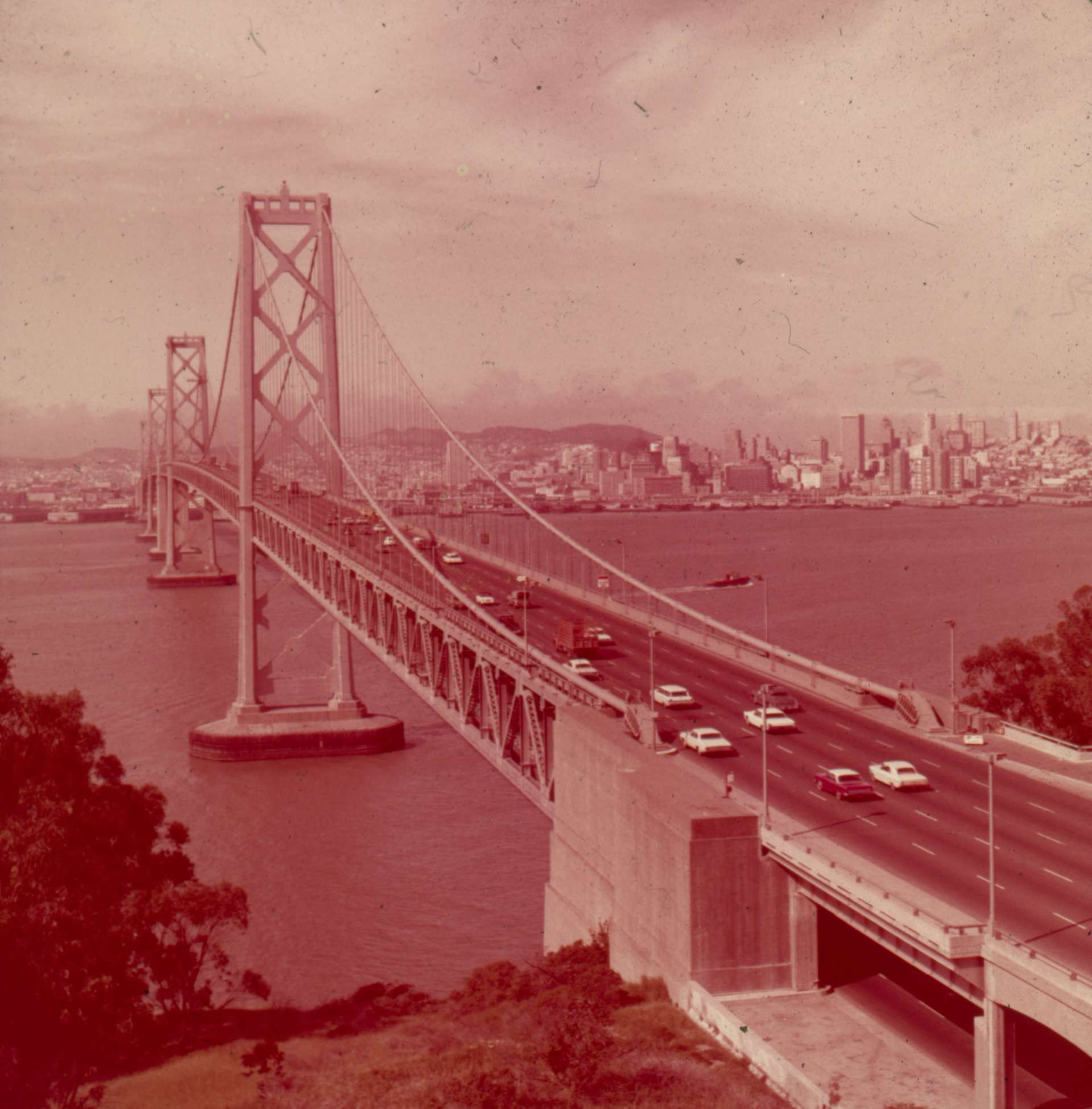
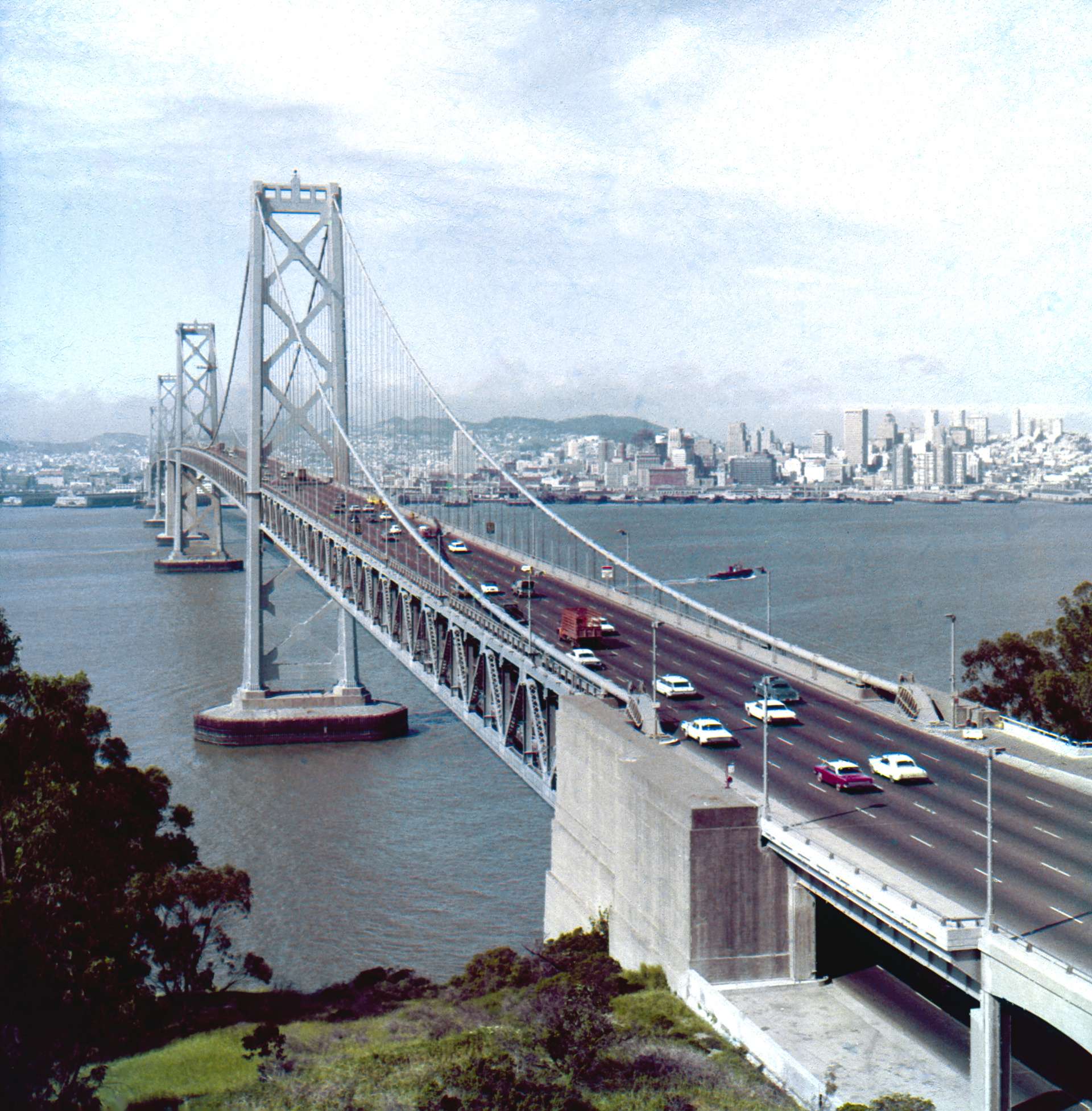
SilverFast’s Intelligent Auto Adjust offers a particularly easy way to optimize red-tinted images. This feature offers various presets that can be applied with just one click. The “Red CCR” filter is especially recommended for images with a strong red cast. This filter was specifically developed to selectively remove unwanted red casts and restore the original color balance. The automatic function is ideal for users who want to achieve quick color correction without extensive manual adjustments.
One of the most effective ways to remove red casts is to use special image optimization tools. Our scanning software, SilverFast, offers several tools that can be used specifically for color correction. The Adaptive Color Restoration (ACR) analyzes the image and automatically restores faded colors. This is particularly helpful for images that exhibit not only a red cast but also a general loss of color. Our Global Color Correction (GCC) allows for precise adjustment of the color balance throughout the image. If the red cast only occurs in certain areas of the image, the Selective Color Correction (SCC) tool can be used to specifically change individual colors without affecting the rest of the image.
To ensure realistic color reproduction, the scanner should be calibrated regularly. SilverFast offers a fully automatic IT8 Calibration, a process that ensures color-accurate digitization. This prevents the scanner from causing additional color casts or exacerbating existing color problems. Regular calibration is especially important if you are scanning a large number of old photos or slides, as a scanner’s color recognition can easily shift over time.
Another crucial factor for high-quality scans is choosing the right resolution. For regular photo prints, a resolution of 300 dpi is completely sufficient.. When digitizing slides or negatives, you should work with 2400 dpi or higher to preserve as much detail as possible. Higher resolutions also allow for better post-processing, as more image information is available
Even if an image still has a slight reddish tint after scanning, this can be removed through targeted post-processing in image editing software. Software such as SilverFast HDR and SilverFast HDR Studio offer extensive color correction tools. The Gradation tool, which allows you to specifically adjust the red channel, is particularly helpful. By changing the color temperature, you can achieve warmer or cooler tones, creating a more natural look.
Not all image materials react the same to the scanning process. Photos, slides, negatives, and special film materials such as Kodachrome require different approaches.
When scanning photo prints, it is important to clean the surface of the images beforehand to minimize dust and scratches. SilverFast SRDx can also help with this. SRDx is a software-based dust and scratch removal tool. An intelligent algorithm searches for defects in the image and marks them for removal. Defects differ more or less clearly from their surroundings and can thus be detected. The correction algorithm then fills the damaged image areas with details from the immediate surrounding area of the respective defect.
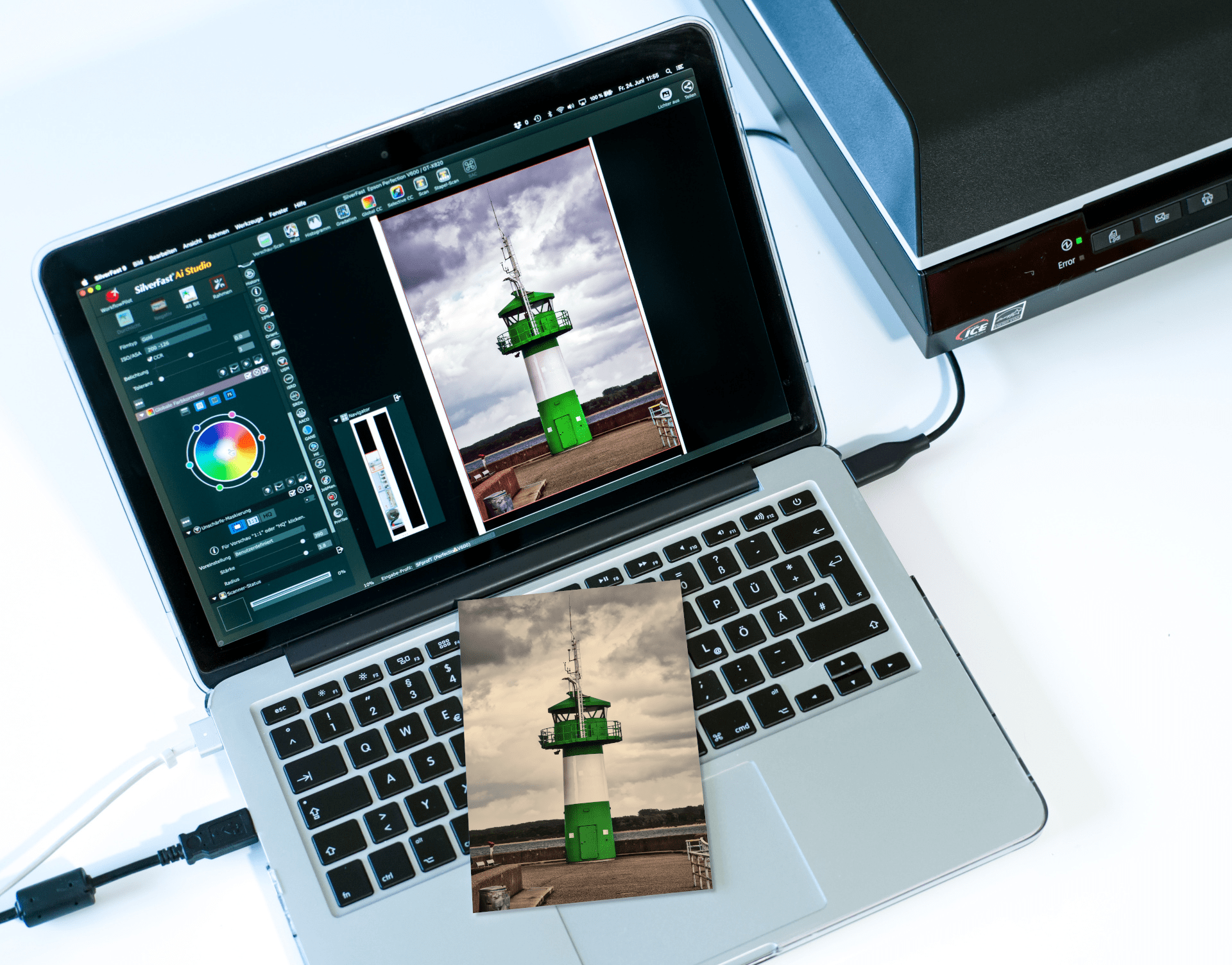
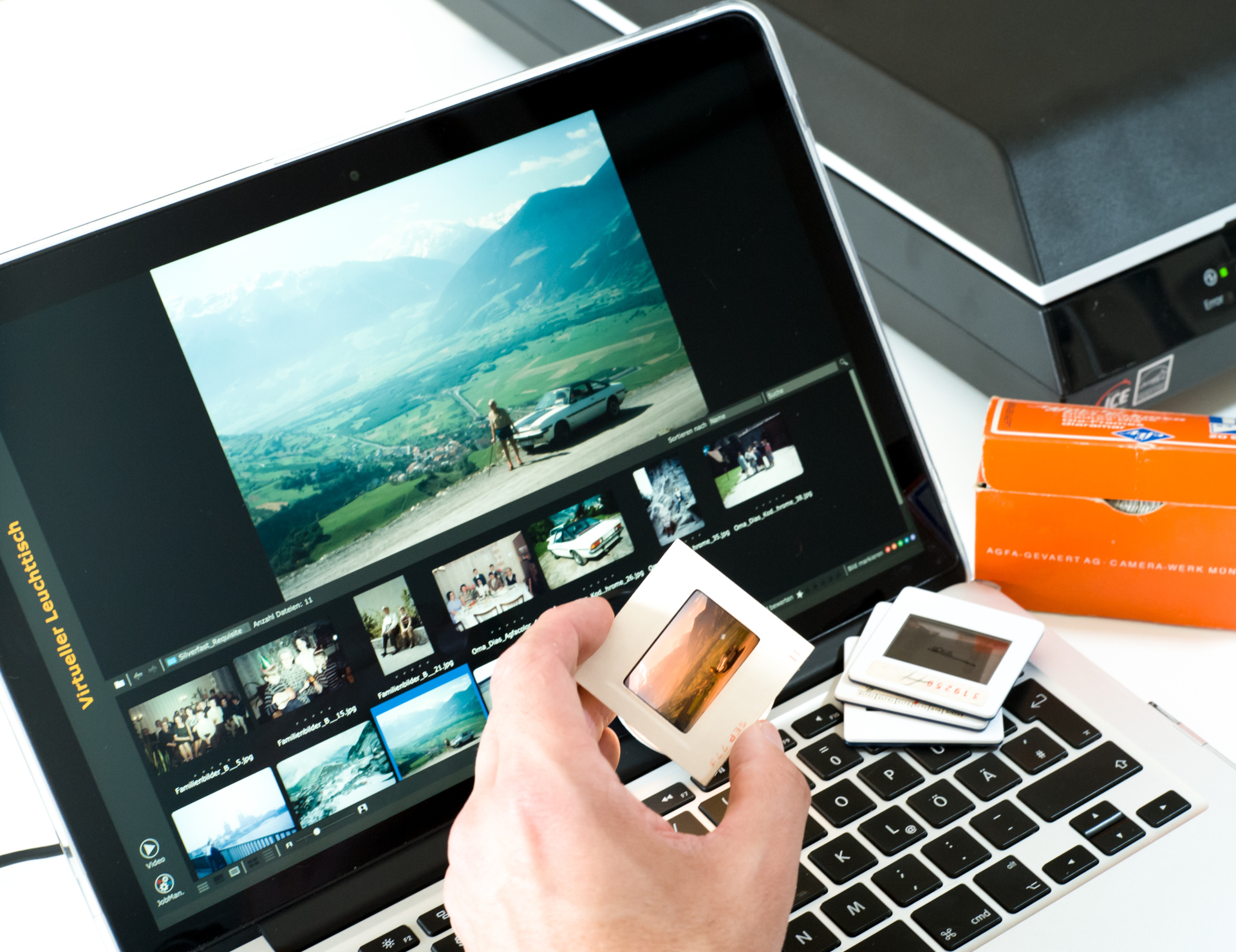
Since slides and film strips are often more fragile than photographic prints, they should be handled with particular care. A high resolution is crucial to preserve as much detail as possible. To receive as much information as is achievable during digitization, SilverFast Multi-Exposure has been developed. With this method, the image is exposed to two different exposure intensities during scanning to get the maximum out of both the dark and light image areas. SilverFast also offers the iSRD feature, which uses infrared light to automatically remove dust and scratches without compromising image quality.
Scanning negatives presents a particular challenge because they require color inversion. SilverFast’s NegaFix functionality allows for optimal conversion of color negatives and correction of color errors. Kodachrome film, on the other hand, tends to have a blue cast rather than a red cast and therefore requires special scanning settings to ensure color-accurate digitization. A Kodachrome color profile for your scanner is already included in SilverFast SE Plus and higher versions.
Old, reddish images don’t have to be lost. With the right technology and modern software, colors can be revitalized and images can shine with new splendor. Through a combination of careful scanner calibration, optimal scan settings, and sophisticated post-processing, even heavily discolored images can be restored. Take advantage of the capabilities of SilverFast and get the most out of your images!
Download our demo software to get to know SilverFast without any obligation. Already convinced? Visit our Online Store to purchase SilverFast and to unlock the full version.
Buy SilverFast Download Demo
After using the software for 4 – 5 months, I’ve gone to love SilverFast and the whole entire workflow. […] The reason why I like SilverFast: The workflow is super super fast.

Cada fotógrafo que tiene diapositivas, negativos e impresiones para escanear necesita este software.
Individually adjusted to each scanner model, SilverFast brings out the maximum quality from any device and clearly exceeds the results of the manufacturers’ software.
The Archive Suite is a package consisting of color managed scanner software and imaging software. Scan and archive your images today, optimize and process them tomorrow.
LaserSoft Imaging is also known as flexible software engineer for tailor-made business solutions. SilverFast is a valuable part in many specialized business applications.